Using Just My Socks on iPhone: Shadowrocket V2Ray Configuration Guide
The original official article is marked as obsolete. Just My Socks recommends using Jamjams for easier configuration and better stability. This article preserves the historical Shadowrocket setup flow; client interfaces and service rules may have changed.
Jamjams: the recommended option
Jamjams supports both Shadowsocks and V2Ray protocols and normally requires no manual configuration. Use the current official download source whenever possible.
Using Shadowrocket
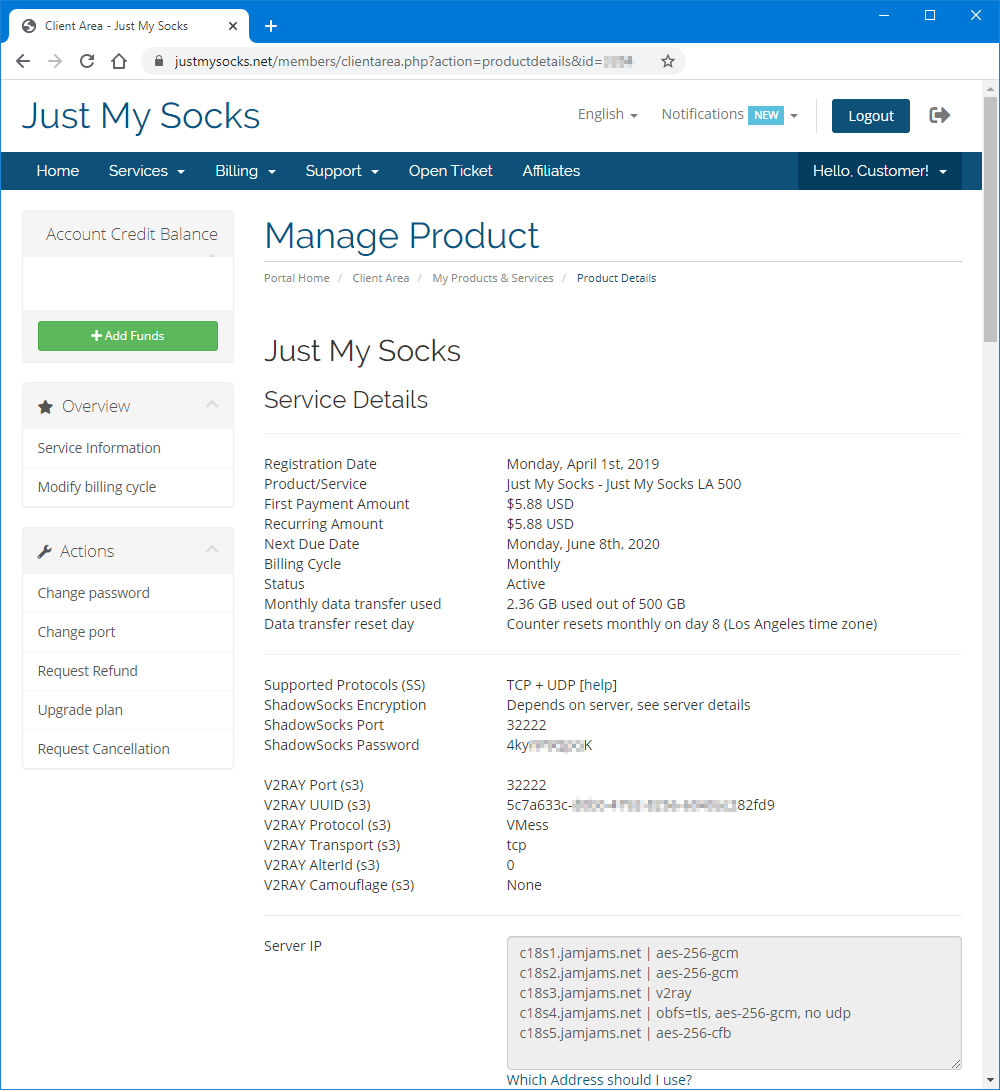
Prepare your service details
Before configuring the app, prepare the server address, port, and password.
- Sign in to your Just My Socks account.
- Open Services → My Services.
- Select an active service to open its details page.
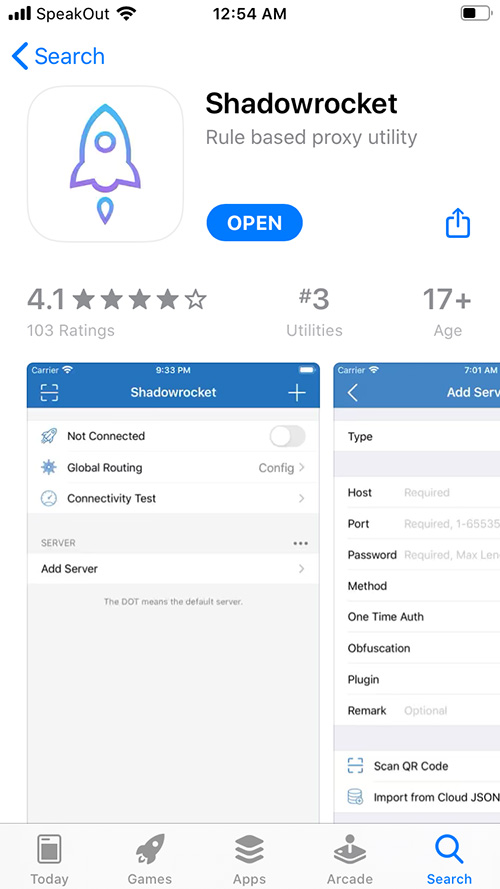
Install Shadowrocket
Install Shadowrocket from the App Store. After installation, open the app and go to the configuration screen.
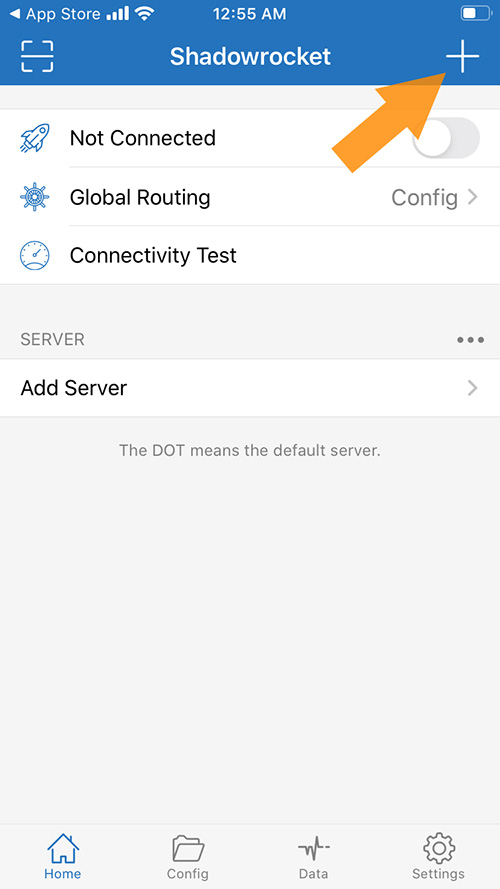
Enter the connection details from the service page.
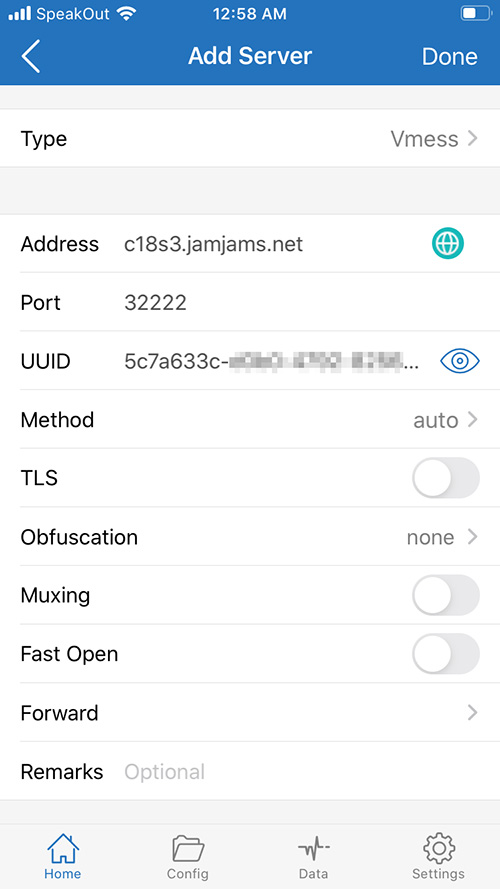
TCP + TLS settings
If V2Ray transport is configured as TCP + TLS in the control panel, enable tls and set allowInsecure to True.
Once the configuration is complete, try connecting.
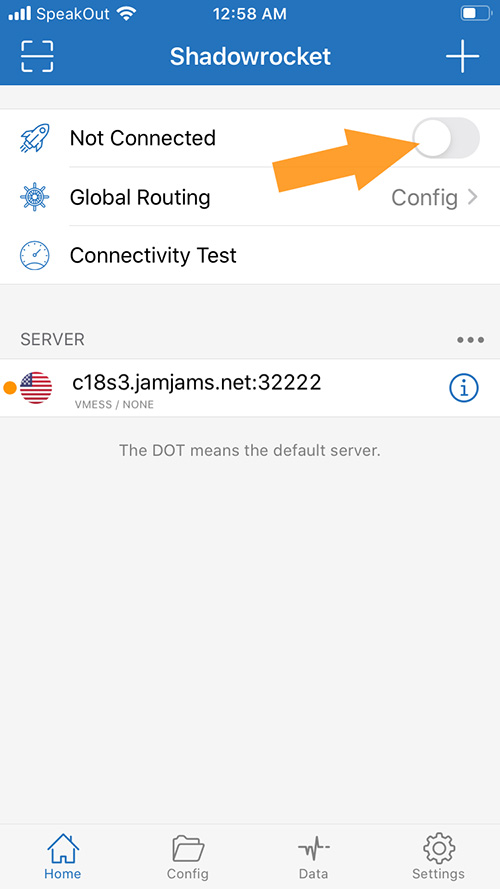
The app will show the connection status after a successful connection.
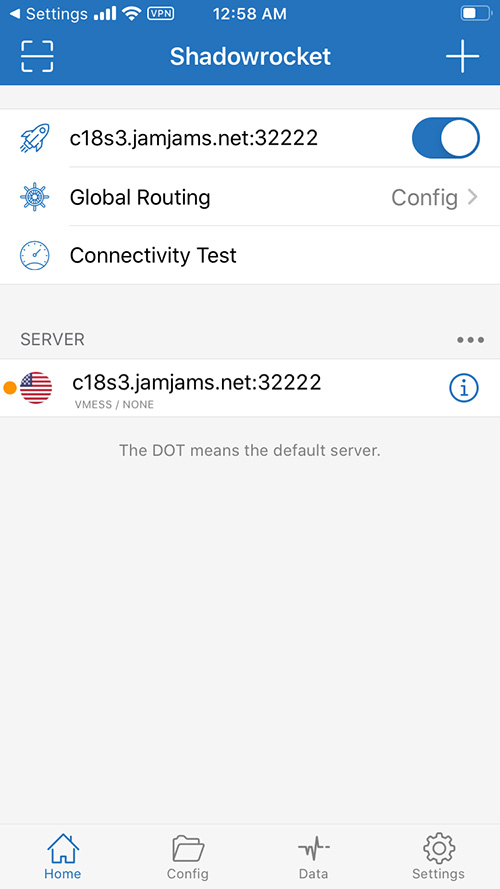
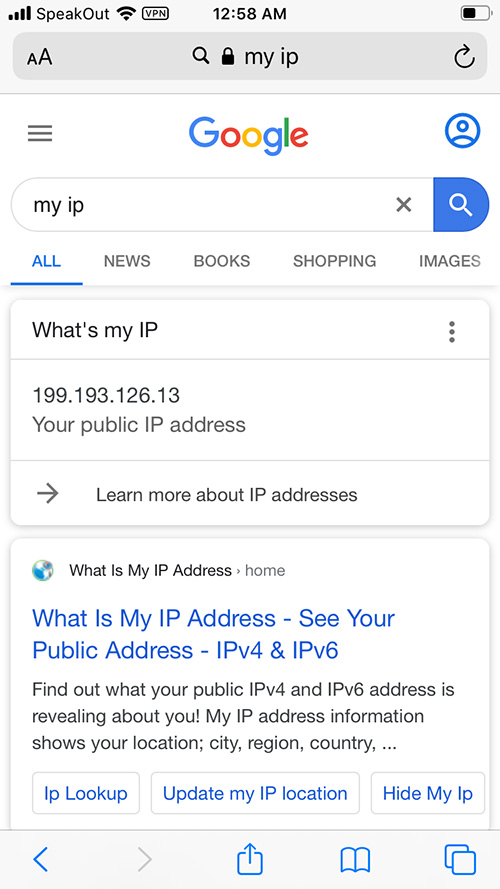
When the status shows that you are online, the setup is complete.
Important notes
- Client names, interfaces, and settings may change between versions.
- Verify downloads, plans, server status, and service terms on the official site.
- If the connection fails, check the server address, port, password, transport mode, and TLS settings.
- Do not publish account passwords, subscription links, or payment information in comments.